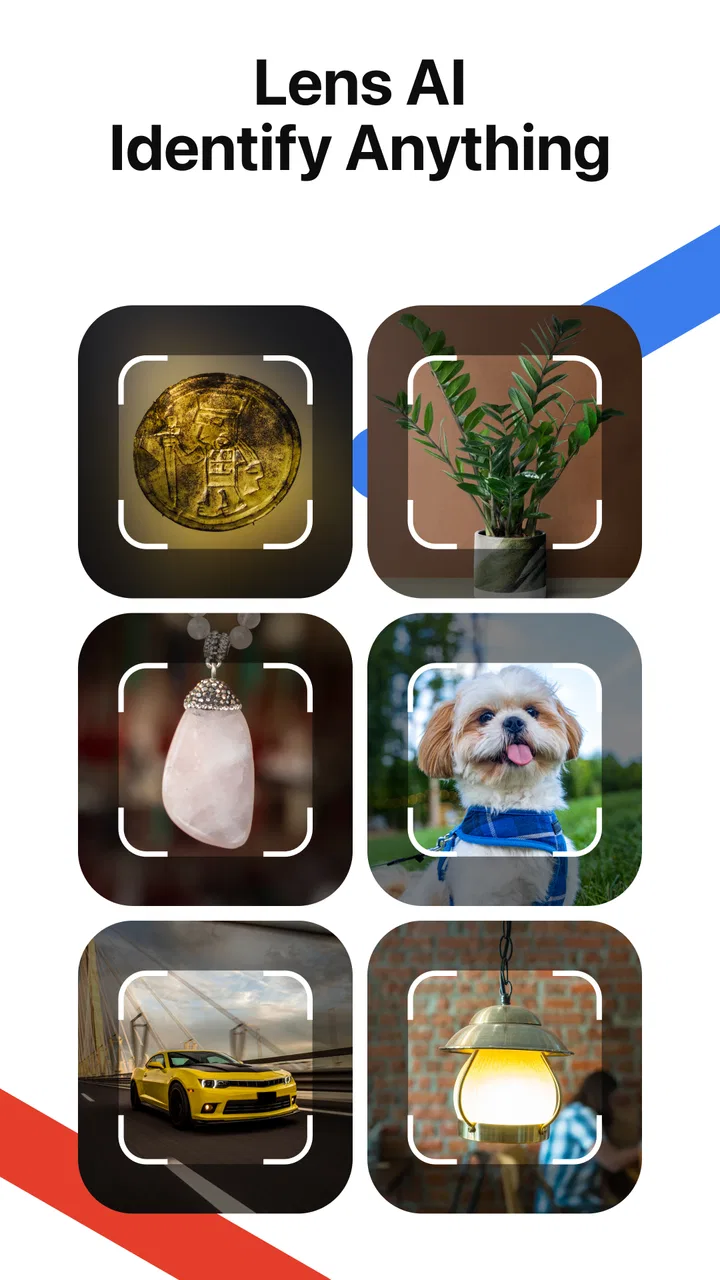
Lens AI: Identify Anything
- 4.2
- Rating
- 500.00K
- Installs
- Free
- Price

 Analysis by App-foxy
I find image-search tools most useful when they remove a small but annoying obstacle: identifying an unfamiliar object, finding a visually similar item, or turning a picture into a more useful search. Lens AI: Identify Anything takes that idea and places it in a focused tools app built around image recognition and visual search. I tested it with the mindset of someone who wants an answer quickly rather than a complicated research workflow, and my overall impression is practical: it can be a convenient first step, but the quality of the result depends heavily on the image and on how clearly you frame the question you are trying to answer.
The app is developed by xLabs Dijital Hizmetler Anonim Şirketi and is available free of charge, with optional in-app purchases priced from $7.99 to $39.99 per item. It is rated for Everyone, which suits its straightforward purpose, and it requires Android 12 or later. The current release is version 1.0.51. With an average rating of 4.2 from around 23K ratings and more than 500K installs, it has already attracted a sizeable audience for a relatively focused utility.
Where the first useful result can get stuck
The biggest mistake is expecting an image-identification app to understand a poor photograph as confidently as a person looking at a clear object in good light. When I use this kind of tool, I treat the first result as a lead, not as final proof. A cluttered background, a partially hidden subject, glare on a label, or several objects competing for attention can all make the search less useful. That is not necessarily an app failure; it is often a framing problem.
You May Also Like

 Google Keep - Notes and lists
Google Keep’s Quiet Growth Shows the Appeal of Simpler Notes
As mobile work gets busier, Google Keep keeps winning a simple contest: capture a thought quickly, find it later, and get on with the day.

 Blood Strike: 2.5 Anniversary
Blood Strike’s Loadouts Turn Every Drop Into a Tactical Gamble
A close look at Blood Strike’s custom loadouts: how fast access to signature weapons reshapes its battle royale rhythm, rewards preparation, and narrows the gap between fights.

 Pandora - Music & Podcasts
Pandora’s Music Is Easy to Start, but Harder to Recover
Pandora’s strength is its low-effort path from a seed to a station. Its weak spot is how much confidence it asks you to place in connection, setup, and quiet recovery.

 8 Ball Pool
 Is Built on Rivalries, Rematches, and Routine
A close look at the rivalries, rematches, shared routines, and unanswered safety questions that turn a quick pool match into a persistent mobile community.

 Samsung Music
’s Quiet Strength Is Playing What You Already Own
Its reach comes less from spectacle than from dependable access to a personal library. That simplicity is both the app’s strongest retention engine and its ceiling.

 AccuWeather: Weather Radar
AccuWeather Review: A Quick, Clear Forecast for Everyday Decisions
For everyday plans, the best forecast is the one you can understand quickly. AccuWeather makes rain timing, radar, and local conditions easy to act on, with a few trade-offs.
More From Our News Desk



A better starting image usually contains one obvious subject. If I am trying to identify a plant, I would avoid including an entire room or a wide garden view. If I am checking a product, I would photograph the product itself rather than a crowded shelf. This simple change is one of the most valuable practical adjustments because visual search works best when the subject occupies enough of the frame to establish what matters.
Users may also get stuck because “identify” and “find something similar” are different goals. An image can resemble many objects without proving an exact brand or model. For example, a picture of a chair may produce useful visual matches while still being unable to establish its precise manufacturer. I find the app more dependable as a discovery aid than as a substitute for reading a serial number, checking a manual, or confirming a technical specification.
Another point worth understanding is that the first result may be broad. That can still be useful. A general category gives me vocabulary for a second search, and that second search is often more productive than repeatedly submitting the same image. If the app recognizes a general type of item, I can use that clue to refine my search outside the app or with a clearer close-up.
There is also a practical privacy habit I recommend before using any image-search service: inspect the picture first. Do not include documents, addresses, faces, screens, or private messages unless they are genuinely necessary for the task. Cropping the image is often beneficial for recognition and sensible from a privacy perspective. I would especially avoid sending a full screenshot when only one small object or section is relevant.
Why the image itself matters more than most people expect
When a result looks wrong, I do not immediately assume that the recognition system has failed. I first compare the image with the question in my head. Am I asking it to identify a single object from a group? Is the item too far away? Is the important text upside down, blurred, or hidden by reflections? These checks take less time than searching manually from scratch.
Lighting is another quiet source of friction. Strong shadows can change the apparent color and shape of an object, while bright reflections can erase lettering. A second photo from a different angle may be more useful than a dozen repeated attempts with the same picture. I also prefer a clean, steady shot over an artistic one; visual-search tools need information, not composition.
For text-heavy images, I would keep expectations measured. A sign, label, or package may be visually recognizable while the exact wording remains difficult to interpret if the letters are small. In that situation, a tight crop of the text is a better test than a full photograph. If the goal is translation or exact transcription, a dedicated text tool may be a better choice than an image-identification app.
Setup checks before blaming the app
The first setup check is compatibility. Lens AI: Identify Anything needs Android 12 or newer, so a device running an older system is not a good candidate for installation or reliable use. If the app is already installed but behaves unexpectedly, I would first check the phone’s operating-system status and whether the app is updated to version 1.0.51. Basic compatibility problems can look like recognition problems when the real issue is simply the device environment.
Next, I would make sure the chosen image is actually available to the app through the normal selection process. A photo that is still syncing, stored in an inaccessible location, or represented only as a temporary preview may not behave like a regular local image. If a gallery item does not load correctly, trying a recently captured picture is a useful diagnostic step because it separates an image-library issue from an app issue.
Connection quality deserves a similar check. Image search commonly depends on sending visual information for processing or retrieving results, so a weak or interrupted connection can make a request appear frozen or incomplete. I would try a stable connection, wait for the current request to finish, and avoid repeatedly tapping the same action. Repeated submissions can make it harder to tell whether the original request is still working.
Storage space and background restrictions can also affect everyday smoothness. A phone that is nearly full may struggle with temporary files, while aggressive battery-saving settings can interrupt apps that need time to complete a request. I would not change several system settings at once. Instead, I would test one simple image after closing other demanding apps, then adjust only the setting that clearly relates to the problem.
The app is free to download, but the presence of optional purchases matters when deciding how to use it. I would begin with ordinary tasks and pay attention to what is available without committing to a purchase. The listed purchase range reaches from $7.99 to $39.99 per item, so anyone considering paid functionality should read the purchase screen carefully and confirm the amount before continuing. I would not treat a paid option as a guarantee that an uncertain image becomes certain.
A setup routine I would use on a new phone
Confirm that the phone runs Android 12 or later and that the installed release is current.
Choose one clear image with a single main subject, preferably without private information in the background.
Use a stable connection and allow the first request enough time to complete before trying again.
Compare the result with the image rather than accepting a confident-looking label automatically.
If the answer is too broad, capture a closer or better-lit image instead of submitting the same picture repeatedly.
This routine sounds basic, but it prevents several common false conclusions. If a clean, recent photo works while an older gallery image does not, the problem is probably tied to the file or gallery workflow. If every image fails under a stable connection, then it makes more sense to investigate the app or device rather than endlessly changing the subject.
Recovering a workflow after a weak result
My preferred recovery method is to change one variable at a time. First I crop the subject. If that does not help, I try a new angle. Then I improve the lighting or remove background clutter. This is more informative than changing the image, connection, and device settings simultaneously. It also produces a repeatable workflow that is useful when I need to identify several related objects.
For example, imagine finding an unfamiliar kitchen tool in a drawer. A wide photograph of the entire drawer gives the app too many competing shapes. I would place the tool on a plain surface, photograph it from the side that shows its working parts, and then take a second image of any printed marking. The first image can help establish the object category, while the close-up may provide clues for a more exact search. This two-stage approach is more realistic than expecting one casual snapshot to answer every question.
When the result is plausible but not exact, I use it as a search phrase rather than as a conclusion. That is particularly helpful for clothing, furniture, decorative items, and tools with many similar designs. A visual match can point me toward the right vocabulary, after which I can compare shape, material, dimensions, and markings manually. The trade-off is that this takes an extra step, but it reduces the risk of trusting a near-match.
Another useful recovery technique is to separate identification from shopping. If I want to find a replacement, I first try to understand what the object is. Only then do I look for a matching product. Similar-looking products can differ in size, compatibility, or safety requirements, so a visual result should not be the sole basis for buying a replacement part or accessory.
I would also keep a small record of what worked for recurring tasks. If close crops consistently perform better for labels, use that format next time. If full-object images are better for shape-based items, avoid wasting time on tiny details. This is a non-obvious advantage of using the app repeatedly: the user can build a personal image-taking routine instead of treating every search as a completely new experiment.
When a second attempt is genuinely worthwhile
A second attempt is worthwhile when the first image was technically weak or when the question changed. It is less worthwhile when the same unclear photo has already produced a broad answer. Repeating an identical request usually does not add meaningful visual information. I would rather spend those seconds taking a sharper photograph, isolating the subject, or capturing a visible label.
If the app identifies the general object correctly but misses the exact variant, I would not call the result useless. That broad identification may be enough for learning, organizing household items, or starting a manual search. It is not enough for decisions where precision matters, such as compatibility, medical interpretation, legal documents, or safety-critical equipment.
For those situations, a specialist source is the better choice. A manufacturer’s documentation is more appropriate for model compatibility. A qualified professional is more appropriate for health-related interpretation. A visual-search result can help describe what you are looking at, but it should not replace authoritative confirmation when the consequences of being wrong are serious.
When the app is not the cause
Not every failed search is an application problem. Some subjects are inherently difficult to distinguish visually. Two cables may look identical while using different connectors. Two pieces of furniture may share the same silhouette but have different dimensions. A generic object may have no distinctive visual signature at all. In these cases, the missing information is not something an image alone can reliably provide.
Image quality can also deteriorate before the app receives it. Messaging apps may compress photographs, screenshots may reduce detail, and a picture taken through a reflective surface can hide important features. If the original camera image works better than a forwarded copy, the transfer process was part of the problem. I prefer using the original file whenever possible, especially for small text or fine markings.
Phone performance is another factor. If the device is busy, hot, low on storage, or restricting background activity, an image request may take longer or fail in a way that feels random. Closing unnecessary apps and trying a small, ordinary image can reveal whether the issue is general device strain. If basic requests work after that, the original image may simply have been more demanding or problematic.
There is also a difference between a technical failure and an unsatisfying answer. A technical failure means the request does not complete or the image cannot be processed. An unsatisfying answer means the system returns something broad, ambiguous, or visually similar. The second situation is often normal for open-ended recognition. I judge the app more fairly when I separate those two experiences.
Compared with a conventional web search, Lens AI: Identify Anything is faster when I do not know the right words. A typed search is stronger when I already know the model, brand, dimensions, or exact phrase. Compared with a phone’s built-in visual tools, this app may appeal to users who want a dedicated, uncomplicated place for image-based exploration rather than a wider set of camera or search features. The trade-off is that a focused app does not remove the need for external confirmation.
Compared with a dedicated barcode, document, or plant-identification tool, it is a broader option rather than a specialist instrument. That makes it useful for mixed everyday questions, but a specialist app may offer more appropriate guidance for one narrow task. I would choose this app when the subject is varied and the main need is a visual starting point, not when I require a certified or domain-specific answer.
My practical verdict after using it
I would recommend Lens AI: Identify Anything to people who regularly encounter objects they cannot name and want a quick visual clue. It is especially suitable for casual discovery, organizing unfamiliar household items, exploring products from photographs, and turning an image into better search vocabulary. The free entry point makes it easy to try, while the Everyone rating keeps its intended use broad and approachable.
I would be more cautious about recommending it to someone who expects exact model identification from any photograph, needs guaranteed text extraction, or plans to use visual results for safety-sensitive decisions. Those users should treat it as an initial aid and keep a manufacturer, specialist database, or qualified person in the loop. The optional purchases also mean I would test the everyday value first and review the payment details carefully before choosing a paid item.
My strongest practical advice is to improve the input before judging the output. Use one subject, crop away distractions, avoid glare, and take a second image that shows markings or useful details. If the answer is broad, turn it into a search clue instead of treating it as a verdict. That workflow makes the app more useful and avoids the most common disappointment: asking a visual tool to provide information that the photograph never contained.
Overall, I see this as a handy image-search utility rather than an all-knowing identifier. Its value comes from shortening the distance between “I have no idea what this is” and “I know what to investigate next.” For everyday curiosity and practical discovery, that is often enough. For exact verification, I would use the result as the beginning of the process, not the end.
FAQs for Lens AI: Identify Anything
01What is Lens AI: Identify Anything used for?
Lens AI: Identify Anything is designed to recognize and explain objects, plants, animals, products, landmarks, and other visual subjects from a photo. After taking a picture or selecting one from your gallery, the app analyzes the image and provides information that can help with identification. Results are intended as a convenient starting point rather than a guaranteed expert diagnosis.
02How accurate are the identification results?
The app can be useful for common and clearly photographed subjects, but accuracy depends on image quality, lighting, camera angle, and how much of the object is visible. Similar-looking species, unusual products, damaged items, or crowded scenes may produce incorrect results. Always verify important information through reliable sources, especially for plants, animals, medicine, food safety, or valuable objects.
03Does Lens AI: Identify Anything require an internet connection?
Most AI-based image recognition features generally require an active internet connection because photos are processed through online services. Identification may be unavailable or limited when you are offline, depending on the version and feature being used. Before traveling or using the app in areas with weak reception, check its current requirements and remember that uploading images may use mobile data.
04Is Lens AI: Identify Anything free to download and use?
The app may be available as a free download, while some features can be restricted by advertisements, usage limits, subscriptions, or in-app purchases. Pricing, trial periods, and available tools can change between Android and iOS versions. Review the store listing carefully before starting a trial, and check the subscription terms so you understand renewal dates and cancellation requirements.
05What happens to the photos I upload to Lens AI: Identify Anything?
Before using the app regularly, review its privacy policy and the permissions requested on your device. Images may need to be uploaded for AI analysis, and the provider may explain how photos, results, and technical information are stored or handled. Avoid submitting sensitive documents, private people, confidential products, or images containing personal information unless you are comfortable with the stated data practices.
Pros
- Identifies plants
- animals
- products
- and landmarks from a single photo.
- Simple interface makes scanning quick for first-time users.
- Useful educational details accompany many recognition results.
- Can help identify unfamiliar objects while traveling or shopping.
- Photo-based searches reduce the need to describe an item manually.
Cons
- Recognition accuracy can vary with blurry
- dark
- or unusual images.
- Some advanced features may require a subscription or in-app purchase.
- Results may be less reliable for rare species or obscure objects.
- Uploading photos may raise privacy concerns for some users.
- The app can use considerable battery and data during repeated scans.

Lens AI: Identify Anything
Gallery